¶ Usage
¶ Interface
The XQu Messaging interface in detail:
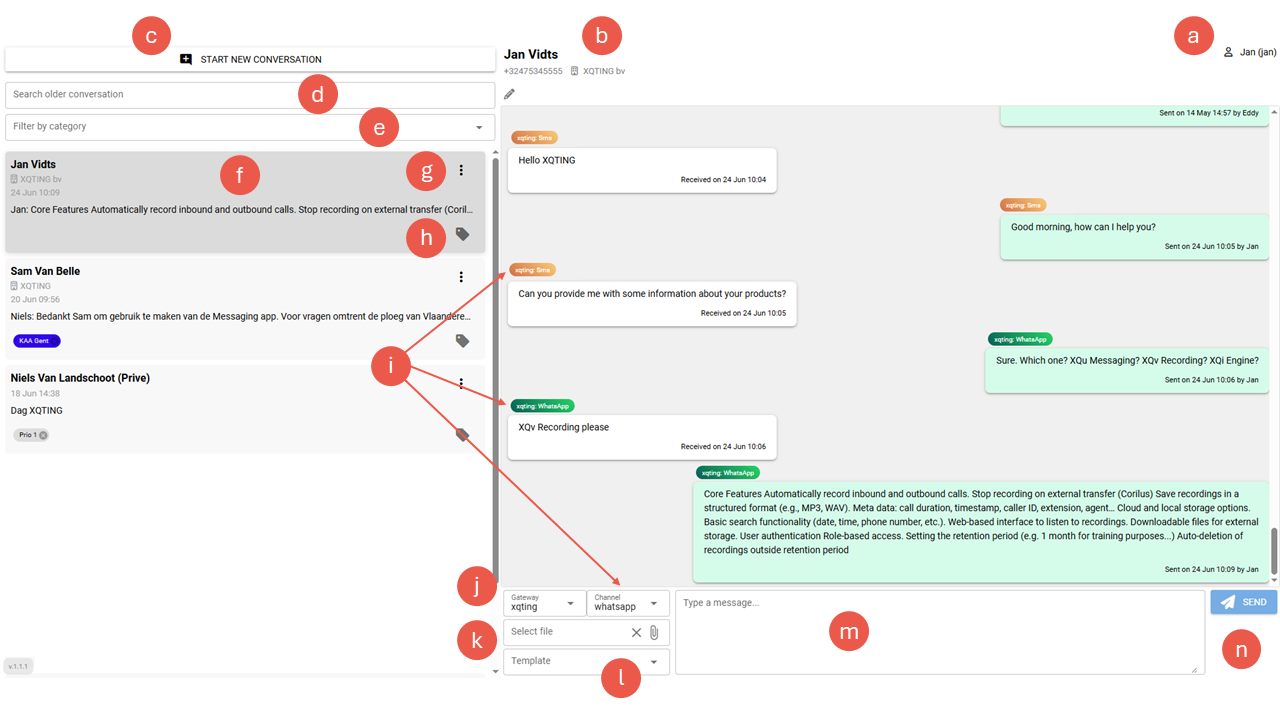
a) The active user
b) Information about the customer (may come from a CRM application)
c) Start a new conversation
d) Search for an old conversation by name or number
e) Filter conversations based on category
f) Active conversation (dark grey)
g) Hide/unhide a conversation / mark as unread
h) Add category
i) Channel switching (SMS à WhatsApp)
j) Support multiple numbers (e.g. different brands/departments)
k) Attachments (WhatsApp only)
l) WhatsApp Business Templates
m) Response area
n) Send button
¶ Active user
In the right top corner, the active user is shown: Name followed by username in between brackets.
Example:
¶ Information about the customer
It is more convenient to show names than telephone numbers. XQu Messaging provides the ability to associate a name and a company with a phone number.
When a message arrives from an unknown customer, XQu only shows the number:
When pressing the pencil, a popup appears:
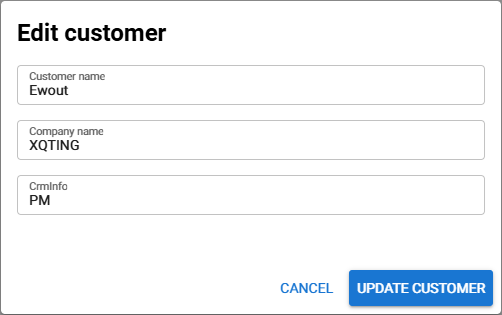
You can enter the name of the correspondent and the company he’s working for.
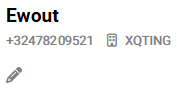
The contact information is updated as follows:
¶ Start new
As a user, one can start a new conversation.

Sending an SMS to someone else will always work.
Sending a WhatsApp message is not allowed unless you use a business template (refer to the introduction in this manual).
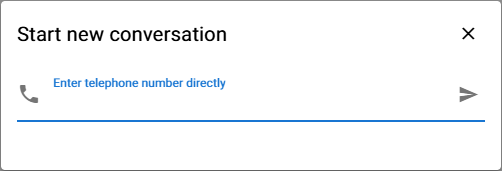
Enter a valid telephone number and press the arrow key.
Select the channel (and a template eventually), enter your message and press the “send” button.
¶ Search old conversation
Looking for an older conversation is done by using the below field:

There are 2 options:
- Enter a name, or part of a name. The search field requires at least 3 characters. As soon as 3 characters are entered, the matching conversations are shown below the search field.
- Enter (part) of a telephone number. Again, at least 3 digits need to be provided.
If no results can be found the following message appears:

¶ Filter conversations based on category
Select a category from the drop-down menu. You can combine categories if you want. To remove a category from the filter, press the small cross next to the name of the category.
The conversations that match the filter(s), are listed above the grey line.
¶ Active conversation
In the left pane, all recent conversations are shown. When selecting one, the background becomes more dark (grey). In the right pane, the content of the selected conversation is shown.
¶ Hide/unhide and mark as unread
The three bullets give access to 2 options:
- Hide/unhide the conversation: you can hide a conversation from the overview. When a conversation is hidden, you can unhide it again via this menu. Conversations that are older than 14 days stay unhidden. They become active again as soon as there is a new message received (or sent).
- Mark the conversation as unread: unread conversations get a blue bullet in front of the conversation. This allows users to draw attention to a conversation (e.g. they have read it but did not take any action)
¶ Add category
One can add one or more categories (or labels) to a conversation. You can do this by clicking on the icon at the bottom right of the conversation. A list of categories set by the system administrator appears. You can add one or more categories to the conversation.
A category is easily removed by clicking on the cross next to its name.
¶ Gateway
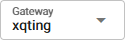
XQu messaging supports multiple gateways. A gateway corresponds with a brand or a department within a company. E.g. a company might have a separate Business number for Sales and Support.
¶ Channel switching
XQu Messaging supports 2 channels: WhatsApp and SMS.

¶ Attachments
You can add an attachment to the message you are about to send.

Clicking the button opens the Windows Explorer. Select a file and click "Open". The name of the file appears in the “Select file” field:

To delete the file, click the cross to the right of its name.
Only one file can be added. If one is already selected and you open Windows Explorer again, the newly selected file will replace the old one.
¶ WhatsApp templates
If you want to initiate a conversation with a customer or prospect, you can only do so based on pre-created & approved templates.

Select the template. It appears in the message window (response area). Replace the placeholders if applicable.
¶ Response area
This is where users type their WhatsApp or SMS message.

To start a new line, you can use “ENTER”.
¶ Send the message
Use this button to send the message:

Als an alternative to this button, you can also press the “CTRL + ENTER” key from within the “response area”.