¶ Access
¶ Log in
Get your URL to access the application from your system administrator. To log on, the following screen will appear.
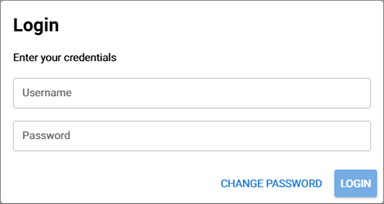
Enter the user name & password that you received from your system administrator.
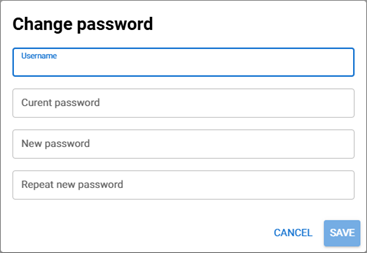
TIP: change your password, the first time you logon, by pressing the “change password” button in the logon screen
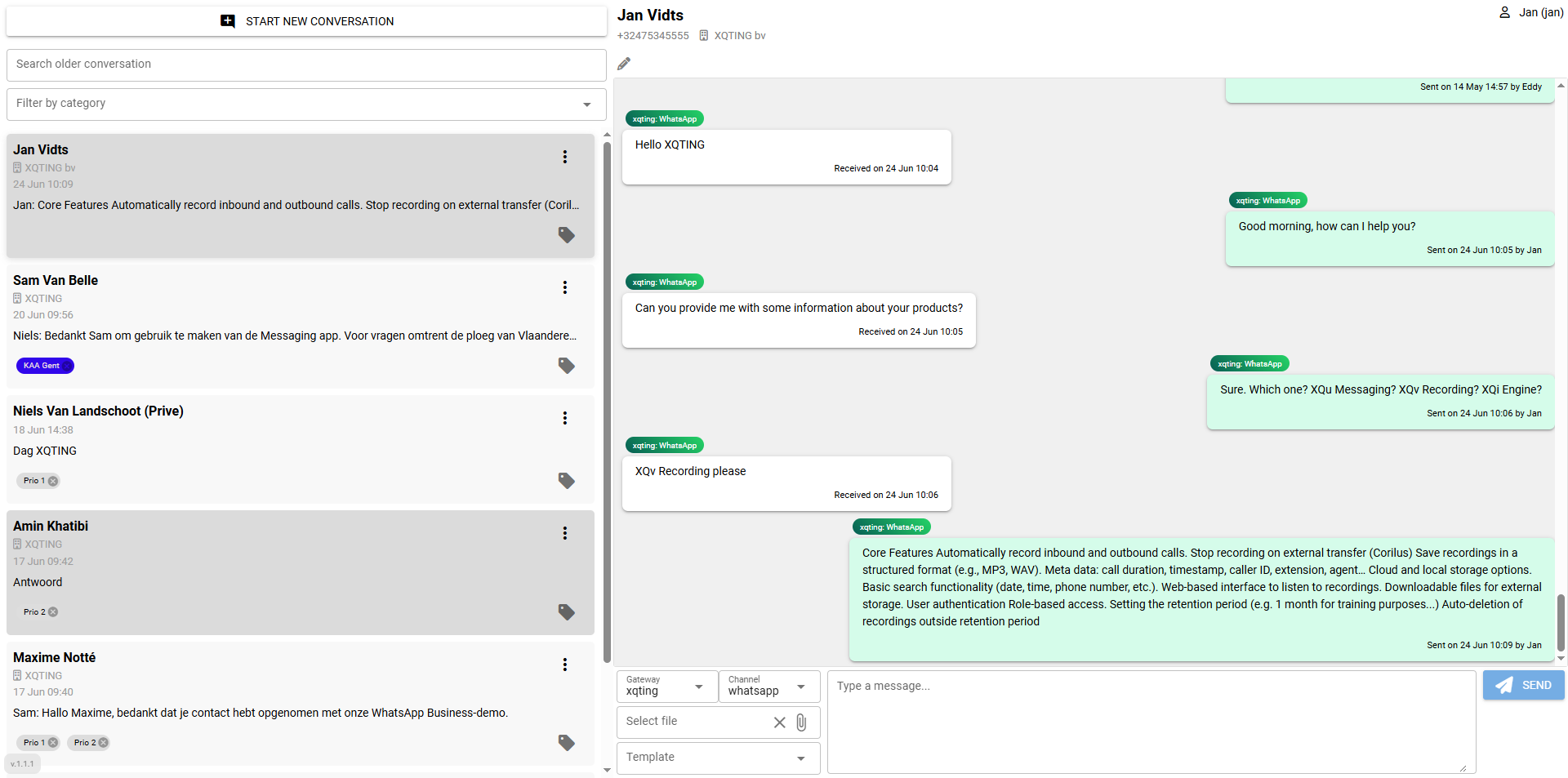
After logging in successfully, a screen will appear that looks something like this:
¶ Log off
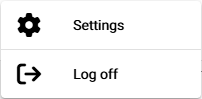
To log off, click your user name at the right upper corner of the screen.

¶ Settings
If you’re an administrator, you have access to the settings of XQu Messaging. Click on your user name at the right upper corner of the screen, and click the “Settings”
You can administer agents and categories:

¶ Agents
As an administrator, you can add, edit and delete a user.
Add
To add a user, press the “+ Add Agent” button:

The following screen appears:
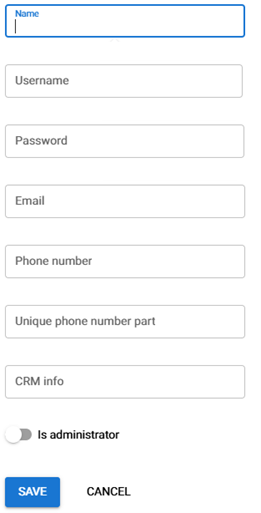
Fields (“*” = mandatory):
- Name (*):
- Username (*): used to login in combination with the password
- Password (*): used to login in combination with the username
- Email: used to send notifications
- Phone number
- Unique phone number part
- CRM info
- Is administrator: yes/no
Edit
To edit a user, just click on the entry of the user you want to change.
If a user forgot his password, the administrator can use this edit function to enter a new temporary password for the user. It is recommended to ask the user to reset his password upon receipt of this new temporary password.
Delete
To delete a user, the administrator clicks on the dustbin icon in front of the user.
This is a soft delete, because even after the user is deleted, one will continue to see in the communications, who has answered the users' questions.
¶ Categories
The administrator can define categories to organise communications into logical groups. Users can filter conversations based on categories.
As an administrator, you can add, edit and delete a category.
Add
To add a category, press the “+ Add Category” button:

The following screen appears:
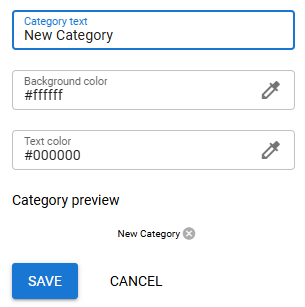
Fields:
Category text: the name of the category as it will appear throughout XQu Messaging
Background colour: set the background colour of the category label. Click the pencil icon. A popup appears:
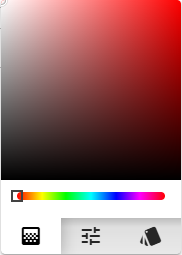
There are 3 tabs at the bottom:
- Left one: first use the slider to get into the desired colour range, then click the desired colour in the square (a small circle appears)
- Middle one: here you can enter the RGB representation of a colour
- Right one: select one of the colours from the square
When having selected a colour, the hex code appears in the “Background colour” field.
Text colour: set the text colour of the category label
Category preview: here you get the preview of how your category label will look like when applying the background and text colour.
Edit
To edit a category, just click on the entry of the category you want to change.
Delete
To delete a category, the administrator clicks on the dustbin icon in front of the category.
¶ Previous chapter