¶ Supervisor
When you are logged into innovaphone as an XQv Recording supervisor (see first chapter) and click on the XQv Recording app icon, the supervisor UI opens with the following main menu:
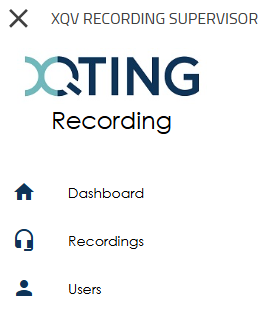
The supervisor clearly has access to less information than the administrator (see previous chapter). The parts to which he has access are also limited to information linked to his team.
¶ Dashboard
The dashboard is the home page in the Supervisor app. It shows a couple of key values:
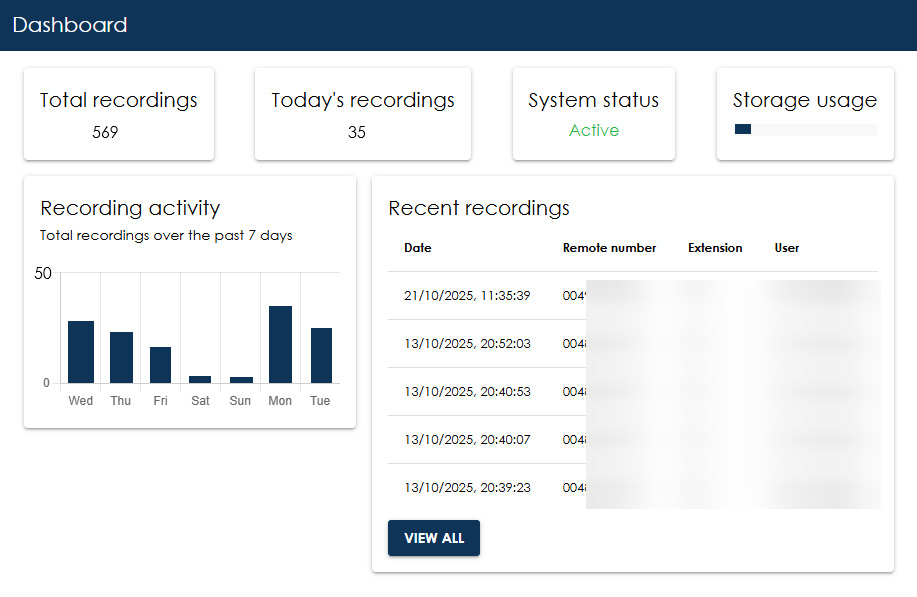
- Total recordings: number of recordings that are available in the system
- Today's recordings: number of calls that were recorded for the current day
- System status: active or not
- Storage usage: a status bar of the storage being used at this very moment
- Recording activity: a small graph giving an idea on the recordings for the past 7 days
- Recent recordings: the list with the 5 most recent recordings. The “View all” button leads to the second entry in the main menu: “recordings” (refer below).
¶ Recordings
This page displays the most recent recordings by default, but also allows you to search for specific recordings. This is done by using filters.
¶ Filters

- From: date/time from when you want to filter
- To: date/time until when you want to filter
- Remote number: telephone number of the calling or called party. You do not need to enter the full number. For example, entering 456 will return all recordings containing that sequence of digits.
- Remote name: name retrieved from the Contacts App of the calling or called party. You do not need to enter the full name.
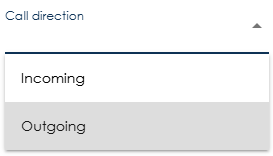
- Call direction: select a direction from the drop-down (incoming or outgoing)
- Extension: PBX extension of the user
- User: PBX name of the user
- Notes: searches the notes associated with recordings and returns recordings containing the specified text.
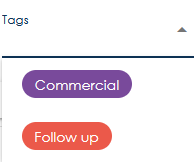
- Tags: filters recordings based on their assigned tags. When multiple tags are selected, only recordings that contain all selected tags are returned.
When using from/to, a date/time selector pops up:
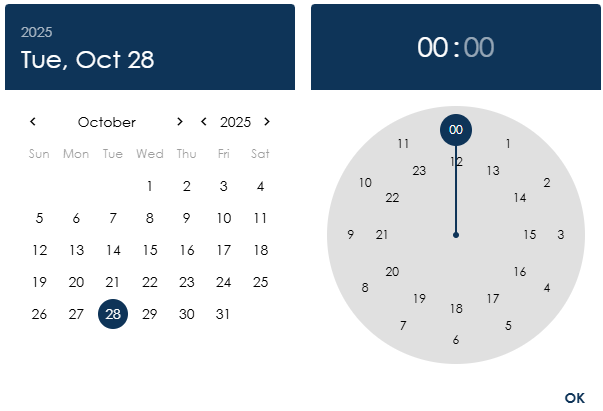
Select a date, set the time and press OK
To apply the filters, press the Search button. The results shown meet all filters (it is therefore an AND filter, not an OR filter).
The Reset button clears all filters that were previously set.
¶ Results
The recordings that meet the search criteria are displayed in a list. The list can be sorted by clicking on the column headers. A downward arrow will appear. Clicking on it again will reverse the sorting; an upward arrow will appear.
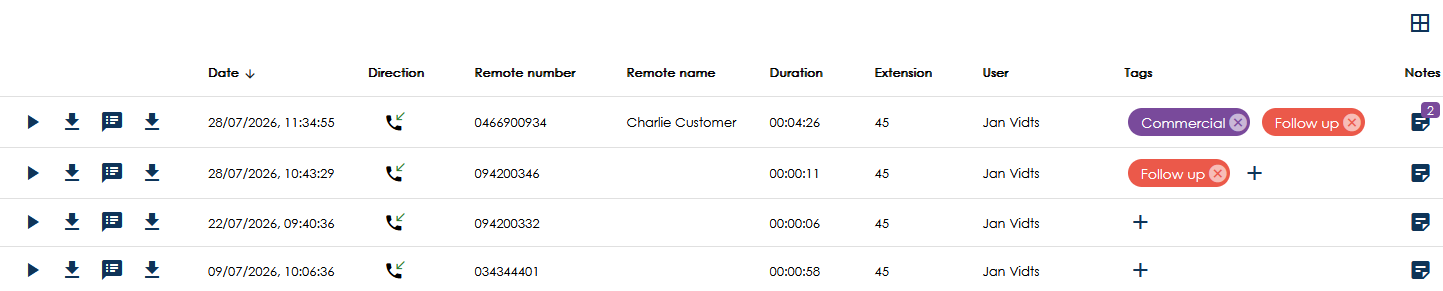
Columns are:
- Date: date/time of the start of the call
- Direction: incoming or outgoing
- Remote number: telephone number of the calling or called party
- Remote name: the name of a contact found in the PBX Contacts App
- Duration: length of the recording in “hh:mm:ss” format
- Extension: PBX phone extension
- User: PBX name of the user
- Tags: displays the tags assigned to the recording. Tags can be added by clicking the Plus (+) icon.
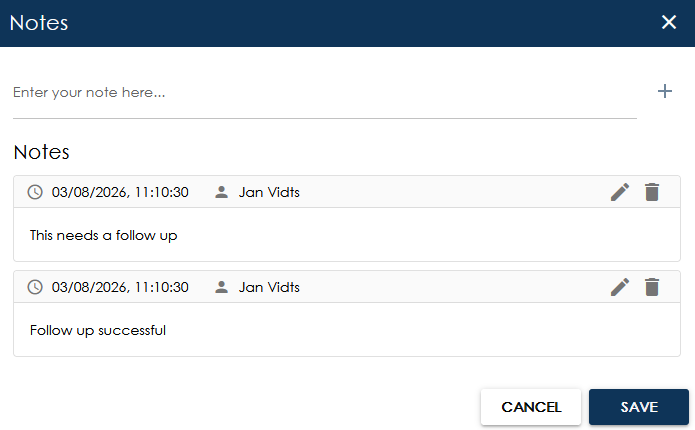
- Notes: Displays the number of notes associated with the recording. Click the Notes icon to open a pop-up window that displays all notes for the selected recording. From this window, you can add, edit, or delete notes.
In addition, two buttons are available for each recording:

- The first button allows you to listen to the recording.
- The second button allows you to download and save the recording locally.
If your organisation has enabled AI-powered conversation transcription, two additional icons will be displayed.

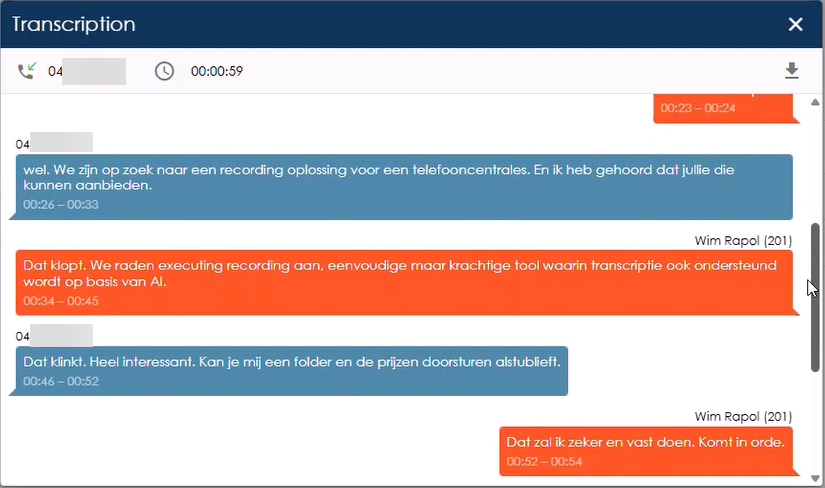
- Clicking the third icon opens the transcript in a pop-up window. This provides a clear overview of the conversation between both parties.
- In the pop-up window, there is also an option to download the transcript.
- Clicking the fourth icon downloads the transcript as a text file, allowing you to save it locally for future reference.
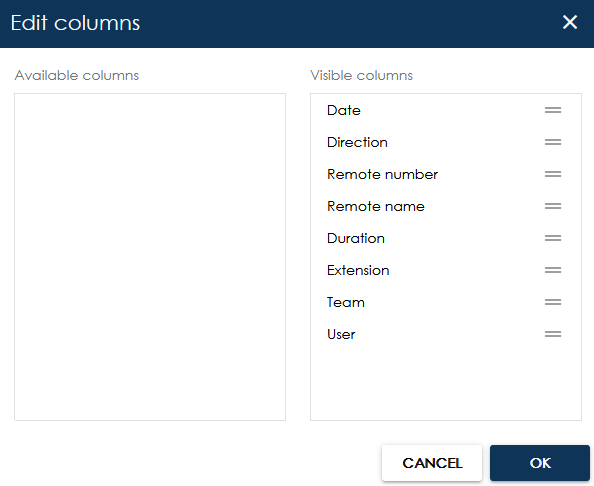
There is also the possibility to Edit columns. Clicking the grid button will show a popup for showing, hiding and ordering columns in the results. It is located on the upper right corner of the result list.

Click a column name to move it between Visible columns and available Columns.
Drag and drop the visible columns to change the order in which they are displayed in the results list.
¶ Users
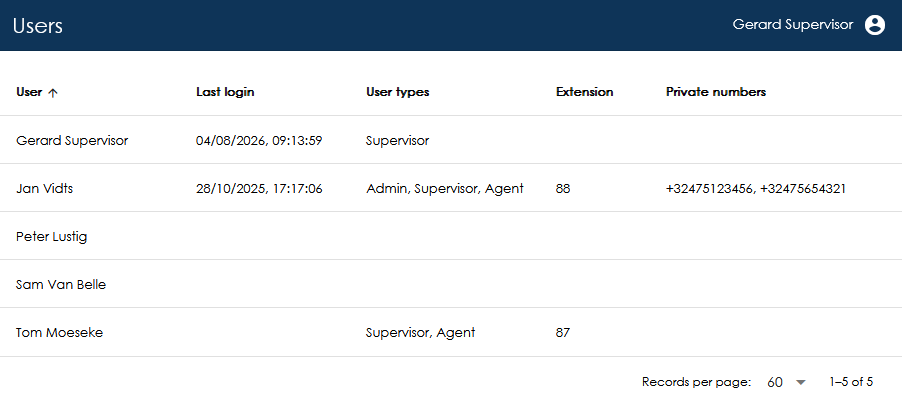
On this page, XQv Recording displays all users in your team, together with any private numbers configured for them.
User permissions are determined entirely by the innovaphone PBX administrator, who assigns apps and licenses to users through the innovaphone UI.
As a result, this list is provided for reference purposes only. Users cannot be selected, edited, or deleted from this screen. All columns except Private numbers can be sorted.