¶ Administrator
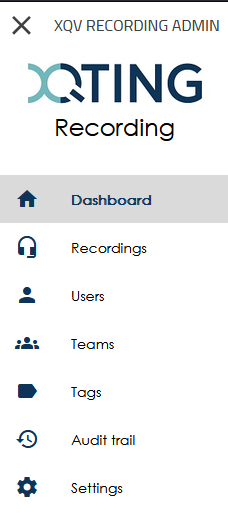
When you are logged into innovaphone as an XQv Recording administrator (see previous chapter) and click on the XQv Recording app icon, the administrator UI opens with the following main menu:
¶ Dashboard
The dashboard is the home page in the Administrator app. It shows a couple of key values:
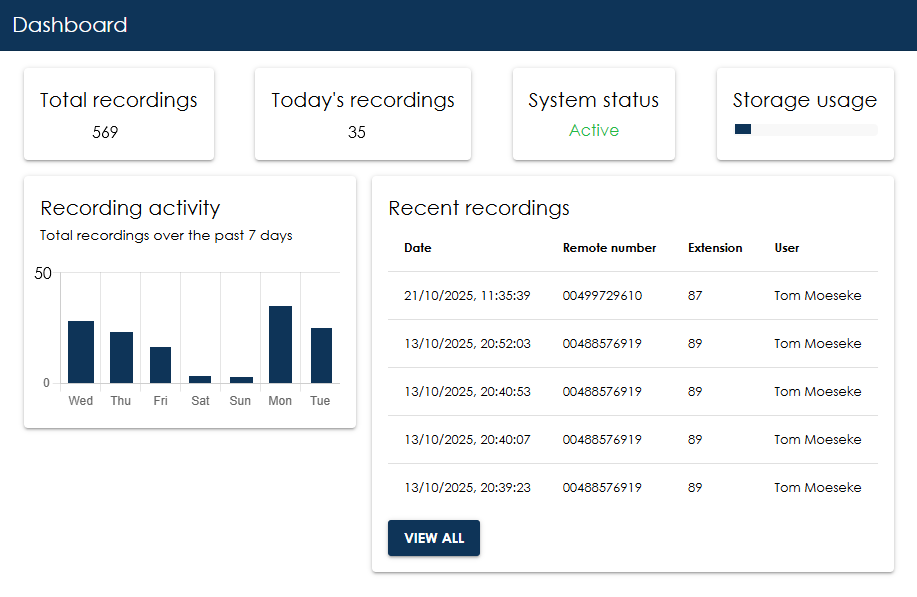
- Total recordings: number of recordings that are available in the system
- Today's recordings: number of calls that were recorded for the current day
- System status: active or not
- Storage usage: a status bar of the storage being used at this very moment
- Recording activity: a small graph giving an idea on the recordings for the past 7 days
- Recent recordings: the list with the 5 most recent recordings. The “View all” button leads to the second entry in the main menu: “recordings” (refer below).
¶ Recordings
This page displays the most recent recordings by default, but also allows you to search for specific recordings. This is done by using filters.
¶ Filters
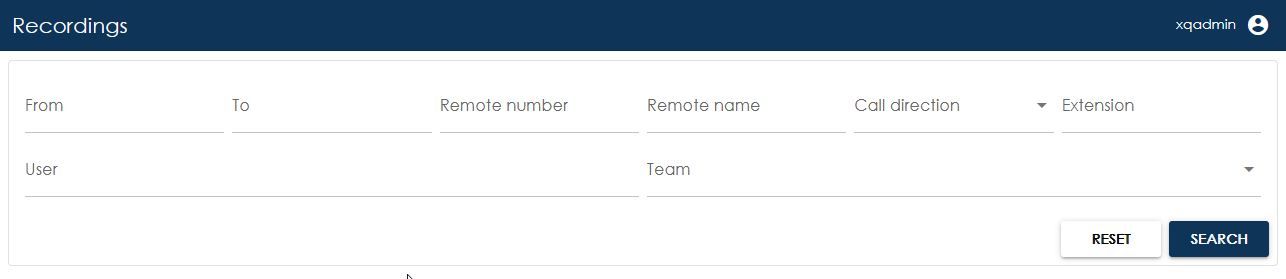
- From: date/time from when you want to filter
- To: date/time until when you want to filter
- Remote number: telephone number of the calling or called party. You do not need to enter the full number. For example, entering 456 will return all recordings containing that sequence of digits.
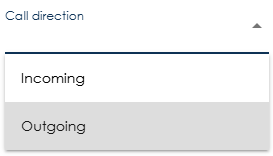
- Call direction: select a direction from the drop-down (incoming or outgoing)
- Extension: PBX extension of the user
- User: PBX name of the user
- Team: select a team from the dropdown list (the concept of teams is explained below)
When using from/to, a date/time selector pops up:
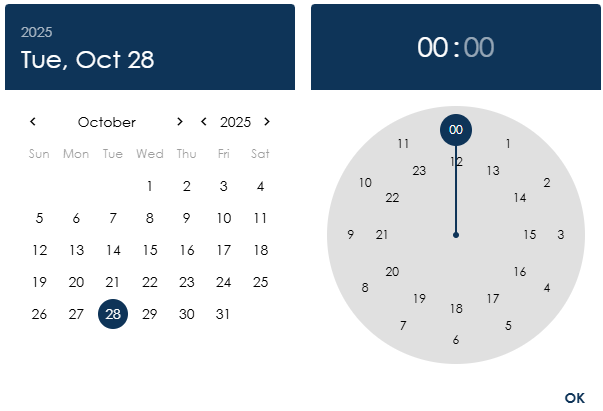
Select a date, set the time and press OK
To apply the filters, press the Search button. The results shown meet all filters (it is therefore an AND filter, not an OR filter).
The Reset button clears all filters that were previously set.
¶ Results
The recordings that meet the search criteria are displayed in a list. The list can be sorted by clicking on the column headers. A downward arrow will appear. Clicking on it again will reverse the sorting; an upward arrow will appear.
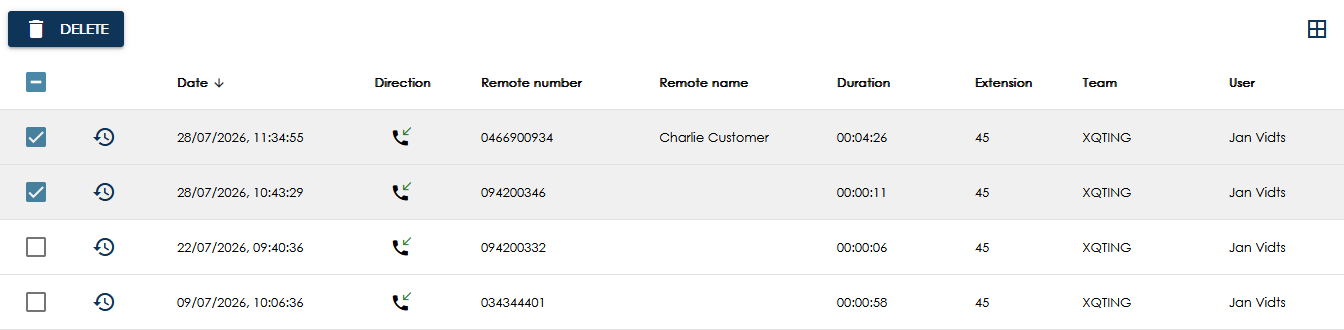
Columns are:
- Date: date/time of the start of the call
- Direction: incoming or outgoing
- Remote number: telephone number of the calling or called party
- Remote name: the name of a contact found in the PBX Contacts App
- Duration: length of the recording in “hh:mm:ss” format
- Extension: pbx phone extension
- Team: team the user belongs to
- User: pbx name of the user
Actions:
- Multi-select delete: select multiple recordings for deletion and press the DELETE button. Deletion of recordings can only be preformed by an administrator role.
- View audit trail: this will redirect to the Audit Trail page with an active filter for the recording.

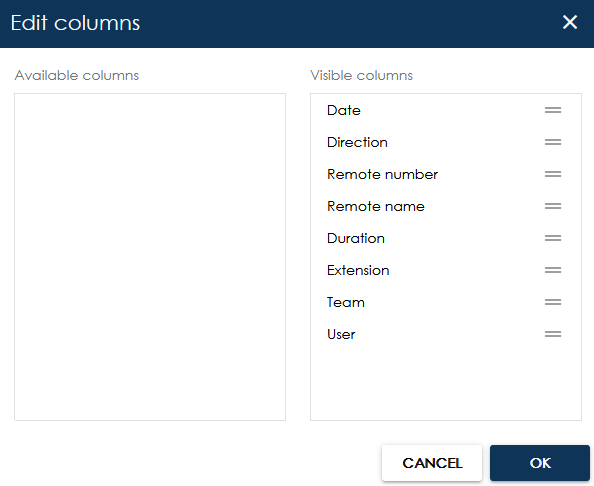
- Edit columns: this will show a popup for showing/hiding columns in the results. It is located on the upper right corner of the result list.

¶ Users
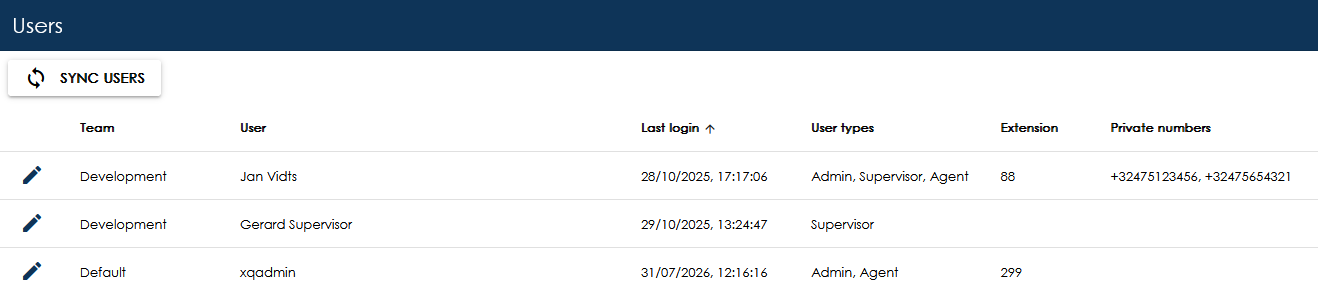
On this page, XQv Recording displays all users in the system, including agents/users, supervisors, and administrators.
The rights and permissions assigned to each user are fully managed by the innovaphone PBX administrator. Apps and licenses are assigned through the innovaphone UI.Once assigned, these changes are automatically synchronised with XQv Recording at regular intervals. However, you can also use the SYNC USERS button to immediately synchronise the users with the XQv Recording application.
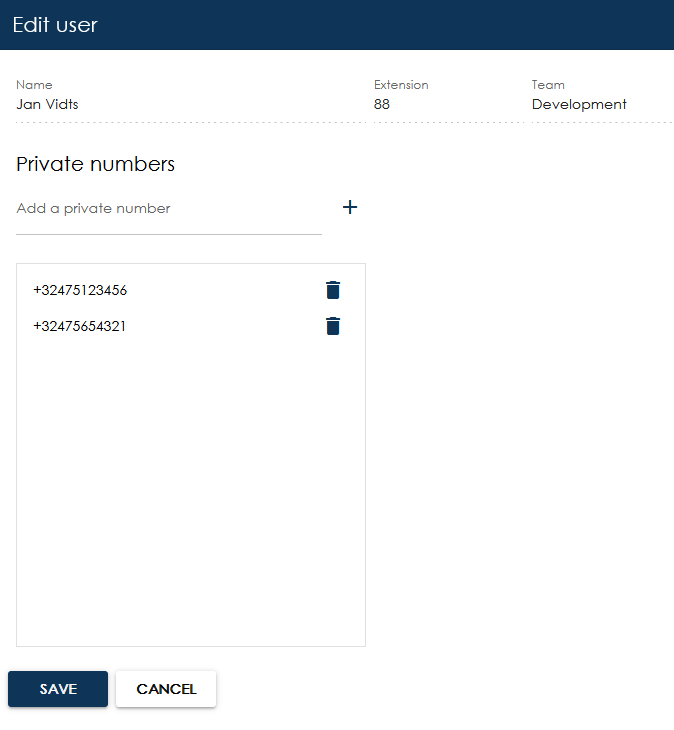
There is a possibility to add private phone numbers whose calls will not be stored in the system. All columns except Private numbers can be sorted.
Actions:
- Edit user: click the pencil button to edit the private numbers of an user.
¶ Teams
The Teams section shows the list of teams that are defined in the XQv Recording app.
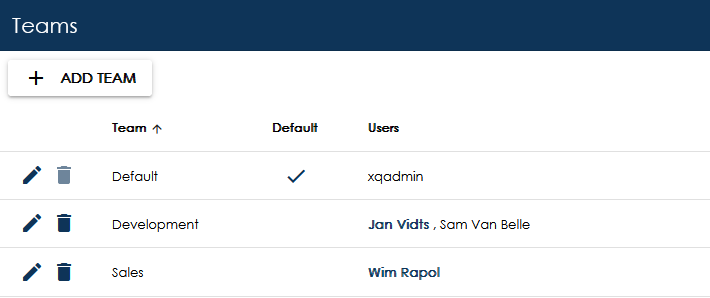
It shows three columns:
- Team: the name of the team.
- Default: the default team is used to assign newly synchronised users. If a user is unassigned from a team, they are automatically assigned to the default team.
- Users: the users assigned to the team. A user name displayed in bold indicates that the user has a supervisor license.
It also provides two actions:
- Pencil: click the pencil icon to edit the team.
- Trash bin: click the trash bin icon to delete the team. All users assigned to the deleted team are automatically moved to the default team. The default team cannot be deleted.
To add a team, press the ADD TEAM button on top. The following window appears:
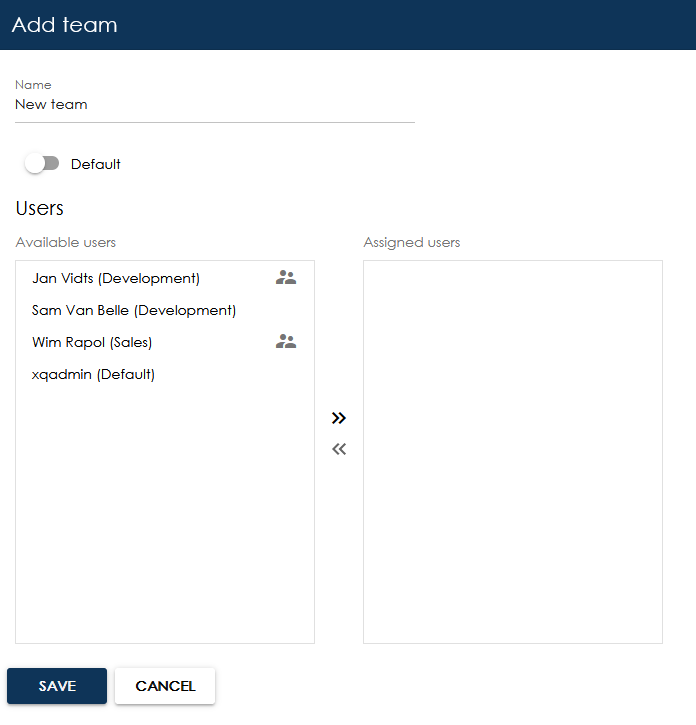
- Name: enter a name for the new team.
- Default: make the team the default team. Only one default team can exist.
- Available Users / Assigned Users: this is a transfer list. Move a user from one column to the other by clicking their name. To move all users at once, use the double-arrow buttons between the two lists. An icon showing two people next to a user's name indicates that the user has a supervisor license. The user's current team is displayed in brackets next to their name. Multiple supervisors can be assigned to a team.
Click the pencil icon next to a team to edit its settings and user assignments.
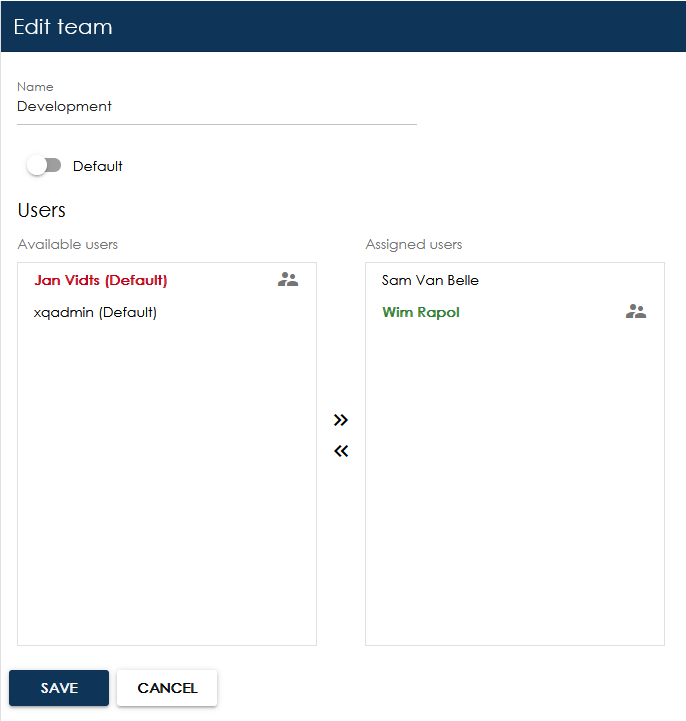
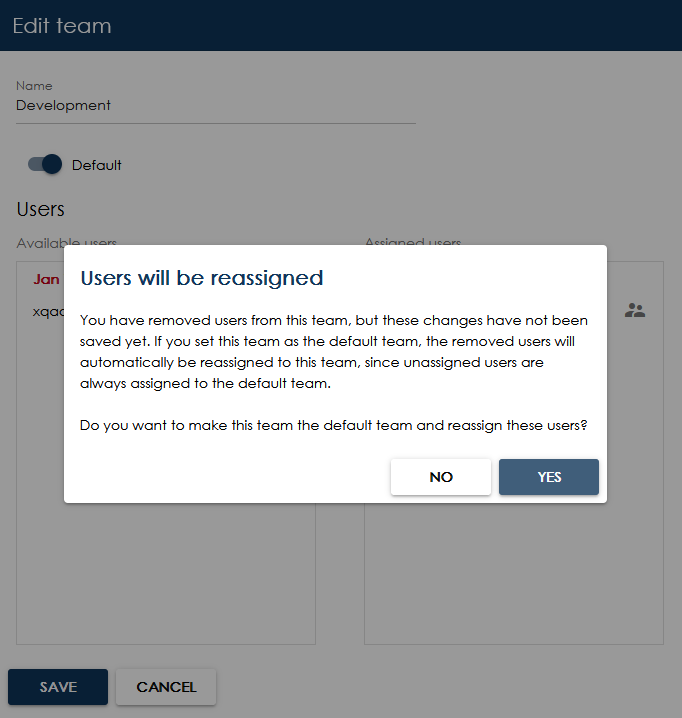
When editing a team, colour coding is used to indicate user transfers:
- Green: user added to the team.
- Red: user removed from the team.
If you mark a team as the default team, no users can be removed from that team before saving. If users have been removed, a popup message will appear explaining the situation and asking whether you want to revert the user changes and continue.
¶ Tags
This page is used to manage all tags. Tags help organise and categorise recordings, making them easier to find, filter, and manage. You can assign one or more tags to a recording to identify its purpose, content, status, or any other relevant characteristic.
Examples of tag usage:
- Meeting, Training, or Demo to indicate the recording type.
- Important, Review Required, or Approved to indicate status.
- Sales, Support, or Marketing to group recordings by department or topic.
- …
By tagging recordings consistently, users can quickly locate specific recordings and create meaningful filters and reports. Only users with a Supervisor license can link tags to a recording.
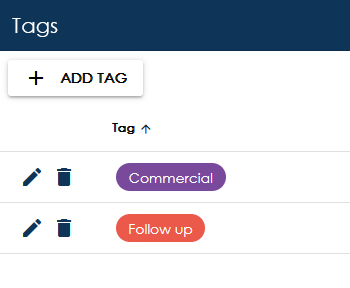
Actions:
- Click Add TAG to create a new tag.
- Click the pencil icon next to a tag to edit it.
- Click the trash bin icon to remove a tag.
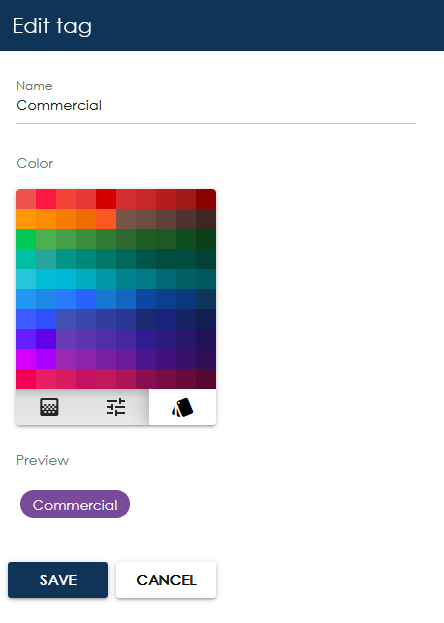
A name and colour can be configured for each tag.
¶ Audit Trail
The Audit Trail page displays the most recent audit events by default. You can use filters to search for specific audit events or recordings.
¶ Filters
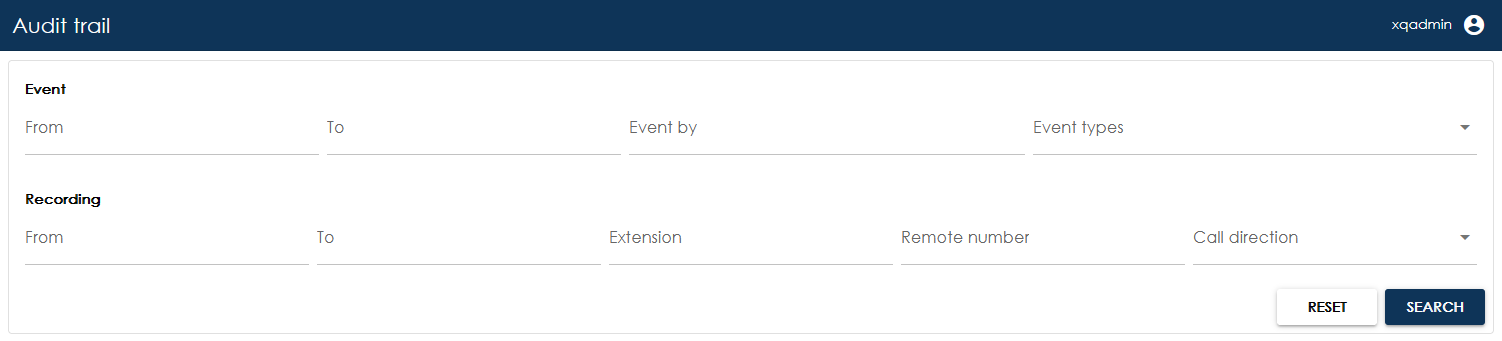
Event filters:
- From: date and time from which the audit event occurred.
- To: date and time until which the audit event occurred.
- Event by: user who performed the action that generated the audit event.
- Event types: type of event. Multiple event types can be selected.
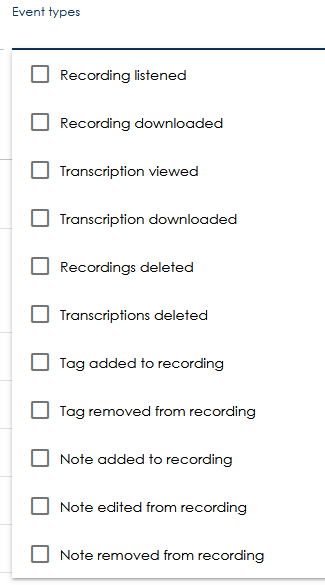
Recording filters:
- From: date and time from when the recording was created.
- To: date and time until when the recording was created.
- Extension: PBX extension of the user.
- Remote number: telephone number of the calling or called party. You do not need to enter the full number. For example, entering 456 will return all recordings containing that sequence of digits.
To apply the filters, press the Search button. The results shown meet all filters (it is therefore an AND filter, not an OR filter).
The Reset button clears all filters that were previously set.
¶ Result
The recordings that meet the search criteria are displayed in a list:
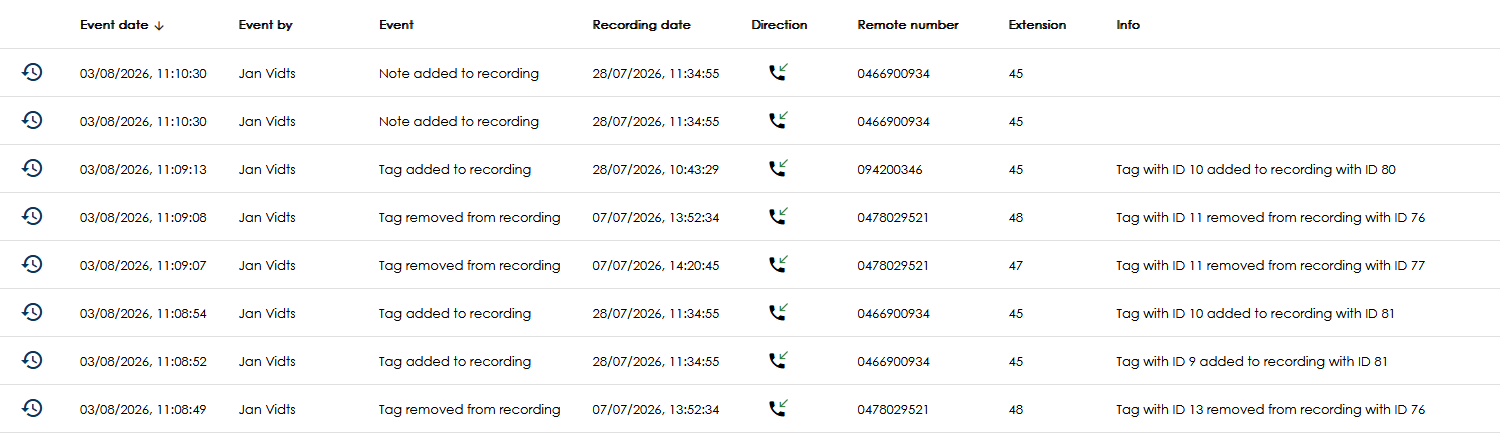
Columns are:
- Event date: date and time when the event occurred.
- Event by: user who performed the event.
- Event: type of event.
- Recording date: date and time when the recording was created.
- Direction: indicates whether the call was incoming or outgoing.
- Remote number: telephone number of the calling or called party.
- Extension: PBX phone extension.
- Info : additional information about the event, such as a tag being added or removed, or a recording/transcription being deleted.
Action:
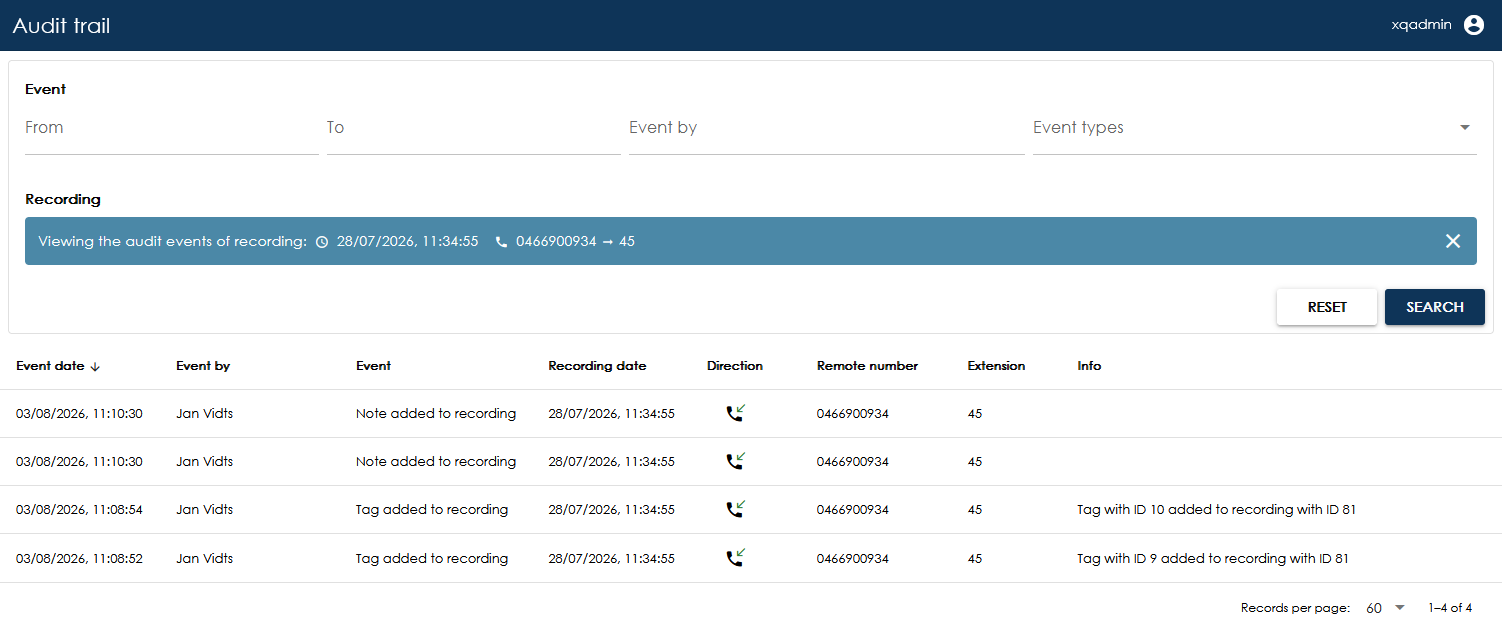
- View audit trail : this will filter the results to only show audit events for that specific recording
¶ View audit trail action
The View audit trail action buttons in Recordings or Audit Trail results show the audit events of only that specific recording. On the image you can see that the recording filters have been removed and replaced by a label that can be closed.
Clicking the X button will remove the recording filter.
¶ Settings
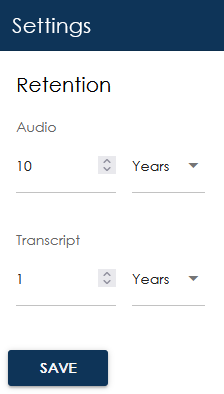
The Settings page allows you to configure how long recordings and their transcriptions are retained before they are automatically deleted.
Available Settings:
- Audio: Defines how long audio recordings are retained after their creation date. Once the configured retention period has expired, the audio file is automatically deleted.
- Transcript: Defines how long transcriptions are retained after the recording's creation date. Once the configured retention period has expired, the transcription is automatically deleted.
Once both the audio recording and the transcription have been deleted, the corresponding recording entry is automatically removed from the database.